I’m curious to see how long others are seeing it take for the beer to get to the child crashed temperature? I have mine in a new self made fermentation chamber and it seems that it takes about 15-20 hours for it to go from 70 degrees to 37 degrees. The chamber is cold right away, but the thermal transfer is taking longer than I imagined
Trying to start a project just as you become a dad isn’t the best plan, but I’ve finally completed my fermentation chamber after about 6 months. I’m already making a beer in it and so far it is working great. The ironic thing is that the temperature is about 70 degrees right now and the fermentation chamber doesn’t really have to do anything, but at least I’ve staying at a constant temperature.
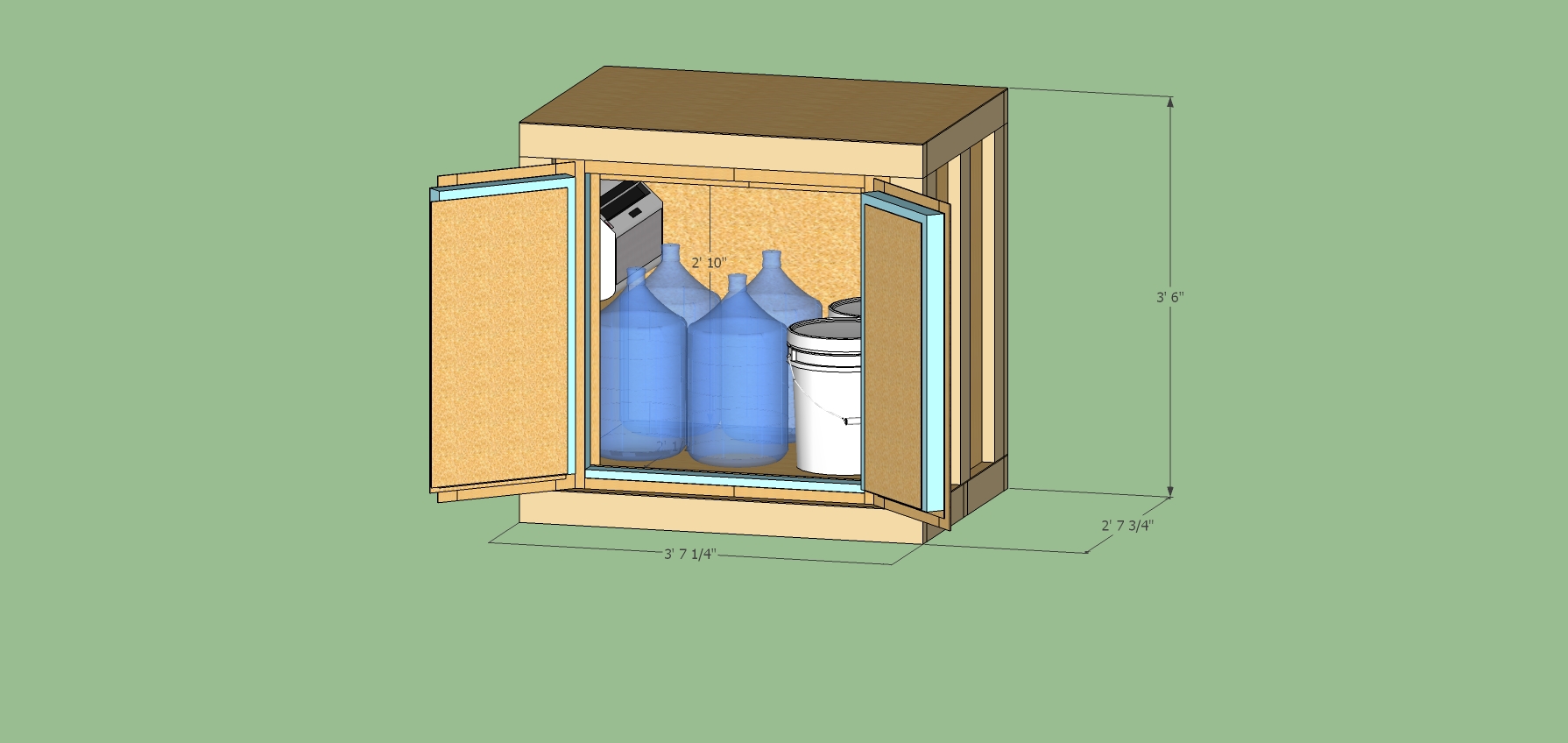
First things first, here are pictures of the completed project (click an image for a larger view)
Supplies
I bought my things from four main places. The temperature controllers came from E-bay, the A/C unit was from craigslist, the 110VAC lights, switches and relays are from Allelectronics.com, and the rest of the material was from Home Depot. The box is made of 2x4s, 1/4 plywood, and 2 inch foam. I used foam glue to attach the plywood to the foam and 2″ screws to join all the 2x4s. To join the foam pieces together and cover holes I used Great Stuff. After I add up all the pieces I spent just a bit under $500. I bought a few tools, but was able to borrow most of the big tools from family and friends. The most surprising thing was how expensive outlets, outlet boxes, fuse holders, and the controller box were.
The Build
Overall the project came together pretty close to the plan. I can’t cut straight, follow my directions, or paint, but other than that I did pretty good. The borrowed tools really helped cutting relatively straight lines, not straight, but straight enough. When I built the controller box I had a few errors that needed correcting, but that was fine and not completely unexpected. I also didn’t like how my doors were going to seal so I added another foam border to help with that.
The control box almost was a disaster. I used a bremel to cut out the switches with no problem. The wiring went to plan. I did have a bit of difficult soldering the wires to the switch contact points, but eventually got it. the I used a few contact boards to provide a secure attach point for the external wires to the internal wires. At the very end I almost couldn’t get the lid to close. I had to move and twist the wires around and apply some pressure to finally seal things up. I had two mistakes during this build. First, my initial wiring for the relay looked really good, but upon testing I discovered that I did about 50% of the connections wrong and had to redo it all. Finally, once it was all sealed up I discovered that my compression did break a couple of contacts that I had to go in and fix. But in the end the controller works great and looks pretty good.
As an extra thing that I worked on while I couldn’t get down to the garage is that I converted two old cell phones into IP webcams, one to watch the control panel and the other inside the chamber to watch the fermenting process and to double check temperatures. To get my wifi signal to reach the garage I had to setup a wifi repeater. The two phones were android phones and I was able to use free apps to setup the webcams. I installed IP Webcam for the webcams, droid VNC server to get into the phone remotely along with Screen Widget to turn the screen off (if needed). Finally, I can watch the webcams with the built in webpages from IP Webcam and I also use IP CAM Controller to see things from my phone. I had planned for this which is why I have an outlet not controlled by the STC-1000s so that the internal cell phone could remain on all the time.
Here are several photos during the build (click an image for a larger view)
Looking Back
Now that I’ve build my project I think I’d do it a bit different next time.
I’d probably simplify all the cuts I have to do and make the outer plywood fit around the foam entirely then have the 2×4 brace around it. This would make the project cost just a bit more, but it would save so much time.
I’d make the doors fit flush with the outside edges rather than fit inside the openings to make the seals easier. I didn’t follow my original plan for the doors as I was worried they wouldn’t seal well.
I would make the A/C cutout a bit larger. This ould make it easier for the great stuff to get in the cracks. I didnt’ have much space and don’t really know how well I sealed this in. (I’m yet to do a dry ice test).
I was excited and cut the foam pieces first, but looking back I should have made the frame and then cut the foam to fit into it. I’m pretty sure my method is a rookie mistake, but I was excited to see the foam cut out.
Next Steps
I haven’t made the dividing section so that I can have two temperature zones inside. I have the controller and the wiring all done and all is left is to figure how I would do this. I’m thinking some type of relay to open and close a small opening and then a fan to circulate air. I also have to figure out how to make the section so that it can be moved around and then “expanded” to give it a tighte fit. I’ll have to think about this for a while, until then…
I’m happy to say that I just got a repeater bridge setup using DD-wrt on both routers. In the garage and in one bedroom the wireless signal from the main router doesn’t come in very well (or not at all). this is particularly troubling since I plan to use some old phones as IP webcams to watch my beer ferment whenever I finish my fermentation chamber.
I read a lot of sites and watched several YouTube videos and failed many times. Though I’m sure most sites were right I think the problem that I had was the encryption between the main router and the repeater router. Many blogs recommended getting the connection to work without without and then one that works setup the encryption.
I did a similar thing as many sites but with a one twist. Rather that have the repeater router connect to the main router over the real wireless lan (wl0), I setup a virtual lan on the main router. This allowed for a few nice things. First, I spent a really long time trying to get it setup directly to the wl0, jumping straight into an AES+TKIP link, and could never get it to work. Secondly, once I went this route I could mess with the setup without impacting the normal network with a few exceptions. This also allowed me to do the setup without turning the normal wireless into an unencrypted link. Also, now my bridge link is hidden so I should really have any thing else using this link.
When I set this up I followed this YouTube video pretty extensively which for the changes of using a virtual lan on my main router the instructions are good. When I got things connected I started with the AP_Bridge being visible and no encryption. I then added the encryption and things worked. I suppose I could have tried AES+TKIP, but I was happy with what I had working given that I spent a really long time prior to this. Once that worked I hid the AP_Bridge. To test things out I reset the Repeater_Bridge and it was able to connect just fine. A quick check in the garage shows a strong signal from the repeater bridge and I should be set to go now. Continue reading “Repeater bridge is now setup”→
Well it turns out Jeep has done a pretty bad job of maintaining the navigation unit software which has been buggy at best. In our case it is the 730N RHR unit on the Jeep Grand Cherokee After a lot of searching, mostly in the Jeep Garage website, I was able to find a person, *sox*, that hosts the files to upgrade the unit as described in this forum post.
Download the Files
Below is the link, username, and password to get the files.
You will be downloading two files. The software and the gracenotes ISOs.
As many posts point out version 2.169 is really buggy, was never released, and should not be used. When I wrote this post 2.136 was the latest version to download. Though I wonder if a new version is on the way since I saw a person post that they have 2.137. Below is the path to the ISO file
Once you have the files you can go about installing the files either of two ways: CD or USB
CD Method
If using the CD method many people, including myself, have had success using the free ImgBurn program. Simply select the ISO file to burn to the CD and done. Note: only one ISO per CD.
Turn Car On to at least Accy mode. No need to start the ignition.
Press power on 730n
Load CD into CD Drive
Close Door
It can take a minute for the cd to be recognized. If it isn’t eject the cd and start over on step 3.
See the installation below
USB Method
I haven’t given this option a try but several posts have reported success. You’ll need a 4GB USB drive to do this.
Turn Car On to at least Accy mode. No need to start the ignition.
Insert USB drive into USB port on radio.
Press power on radio to turn radio off.
Wait 5 to 10 Seconds and power Radio back on.
It can take a minute for the USB drive to be recognized. If it isn’t start over.
Installation
Once it recognized the CD or USB drive you should be prompted to “Proceed with Update” It will show you the current version and the version it will upgrade to. Assuming this is what you want press Yes. The installation took a while, but once it was done you can confirm the upgrade was successful in the System information.
[singlepic id=37 w=320 h=240 float=none]
[singlepic id=38 w=320 h=240 float=none]
[singlepic id=36 w=320 h=240 float=none]
[singlepic id=41 w=320 h=240 float=none]
Parting thoughts
Hope this helps someone. Turns out our hard drive failed in the unit and Jeep had to replace it. The techs were suprised to see that my unit was upgraded to the latest version which goes to show how poor Jeep is at keeping the customers up to date. Since the new hard drive was replaced and with the 2.136 version has been installed the nav unit has been much more stable.
Just survived a scare, the SD Card in my phone became unrecognized and I was worried that I lost all my camera photos. So my phone died when I was at work so the phone shutdown. When I got in my car I left it on the car charger for just a little while and then tried to turn it on. Apparently I didn’t wait long enough because just as the Android OS booted up the phone died again. Side note, a car charger doesn’t charge a phone faster than it can drain it with the screen and all the antennas on. Later when I got home and charged my phone long enough the SD Card came up and unrecognizable and Android asked if I wanted to format it.
After a few searches and several unsuccessful suggestions I remembered that I have a program, MiniTool Partition Wizard, that might do the trick. It has an option to scan and repair a partition. So I ran the scan with detect and repair option selected and it discovered that it was formatted for FAT32 and that the “/” link was bad. It did some repairs and the presto my SD card was recognizable by Windows 7. I plugged it back into my phone and life is good again. I think I’m going to make sure a backup is done tonight…
turns out the free dynamic dns site changed to a pay service so I’ve moved our site over to bt.beerprojects.com. This is now hosted by http://freedns.afraid.org/ which is a free dns service.
After my last batch of beer, Baby-T Double Trouble Belgium Dubble, came up short on the alcohol content I’ve decided that my problem is due to my fermentation temperatures…and possibly my aeration. I was also having a hard time using my wort chiller since the hose water that I’ve circulated through it wasn’t too cold. So I’m stepping it up a notch.
I got a drill off of Craiglist for about $20 and a drill water pump from Home Depot. Next time I chill the wort I’ll be circulating iced water from a cooler through the chiller which should bring the temps down right away. I also bought a large drill-attached paint mixer to help aerate the wort after it is chilled. One thing I’m slightly hesitant on is that while I plan to sanitize the mixer, I don’t know if I’ll run into any problems since it isn’t a food grade mixer. I guess I’ll learn soon enough.
Now to the main issue, temperature control. For all my batches to date I’ve simply left the beer to ferment in the back of the garage. The temperature usually stays around 60 degrees, but on really hot days it will rise to 70 and on consecutive cold days it will drop to low 50s. For my last batch I started fermenting right as a cold spell hit which I’m pretty sure caused the yeast to not ferment all the sugars. After a lot of reading the only way I’m going to get around the problem is to get some temperature regulation through a fermentation chamber.
I did a lot of reading in the http://www.homebrewtalk.com forums to get ideas of how to go about building a fermentation chamber. I think there are basically three types of chambers, those that use ice, those that use a fridge components, and those that use air conditioners. The ice ones are simple (1,), but if you ask me annoying to maintain. The fridge styles have many variations. Some work as is, some take some cutting of the interior to make room for a carboy (1,2,), some look to extend the fridges dimensions with some type of add on (1,), and others strip out the cooling component and then use a custom box (1,). For the AC styles they are pretty much the same, take an AC unit and build a custom box (examples below).
Our garage is already packed with stuff, so the custom box idea was the most attractive to me. The next part was to decide fridge or AC which is the single most expensive part. I simply trolled Craiglist for a while until I found something cheap. For me it ended up being a $30 Haier 5000BTU AC unit (HWF05XCK-1) which I learned was purchased from Target the year prior when we were having a huge summer heat wave and the person selling it was moving to Saudi Arabia. I joked with the person that they probably should have taken the unit with them, but assured them that I’d put it to good use. Anyways, just as noted in the Racer X design to override the temperature cutoff on the AC unit a simple loosening of the screw behind the temperature knob will do the trick.
AC Unit with my measurements (click the picture for a larger view)
[singlepic id=27 w=320 h=240 float=none]
The screw is here (hard to see) [singlepic id=18 w=320 h=240 float=none]
This is the other side, do not mess with this screw [singlepic id=16 w=320 h=240 float=none]
With the screw loosening I rigged up a quick test to see that I did things just right
[singlepic id=19 w=320 h=240 float=none]
The temperature is down to 36 degrees F! [singlepic id=20 w=320 h=240 float=none]
With the AC unit and the idea to make a custom box, I needed to sort out the temperature controller. I very very long forum about an aquarium temperature controller that can be bought on ebay seemed like the ticket for me. This controller usually can be bought for $15-$20 and I got my first one for $15.50 and the second for $18.25 (I’ll explain later…which if I knew how to do ebay better should have been $17, but I’ve wasted $1.25 on worse before). Here is a quick look at one with my measurements marked up on it: [singlepic id=28 w=320 h=240 float=none]
Now off to design the chamber. My design was strongly influenced one the 2 Tier, 2 Zone fermentation chamber (Racer X). It is a really nice build and as it turns out I ended up with the exact same AC unit as his (even though they are listed as different brands). This chamber is really nice as it allows for one cooling unit and two temperature controllers to create the two zones. There are a few others with similar ideas that I looked at too (1, 2, )
I decided that while I really like the 2 zone idea I don’t need that right now, but that I’d make my design with a future expansion in mind. I wanted to make sure that this could hold a keg plus kegging gear, 3 soda kegs plus gear, 4 carboys, or 4 5G buckets, or 2 buckets and all of my other brewing gear so that I’m not scattered all over the garage. With this in mind I settled on an interior dimension of 34″ x 36″ x 24.5″ (height, width, depth when looking at the front).
Additionally, here are a few design notes that I took from all my forum reading
Use the best (i.e. highest R-rated) rigid foam. A look at Home Depot says there is a 2″ foam with an R-10 value that is moisture resistant
Seal all the edges to avoid air leaks
A 2×4 is not 2″ by 4″. It is really 1.5″ x 3.5″
On the interior paint the inside with a mildew resistant paint and caulk the edges.
I want easy access to the interior. No top doors so that I can leave things on the top.
I messed around for a bit trying to figure out how I would go about designing this. When I did my bar a few (many) years back, which I’ll post about some other time, I did it all in excel where each cell represented 0.25″. that worked out well, because a quarter inch was the smallest thickness of wood that I used. For this design I plan to use 1/8″ plywood and excel just won’t work as there are too many cells needed. I ended up doing the design the simple way, engineering paper, a ruler, and a pencil. For the most part I had each square represent 2″. The 1/8″ is hard to draw clearly, but I made it work. I won’t go into all the effort spent making the design, but below are the drawing for the chamber. As in the Racer X design, the doors are the hardest part. I decided to have two doors that swing open from the sides. If you look carefully at the design, I’ve staggered the plywood and foam cutting one inch from the sides, the top, and between the doors. With this staggered approach the doors actually don’t come together in the middle, but I have a door cover that makes it appear as if it does. I need to sort out how to add the weather stripping, but for now I’m planning on just slicing a bit of foam away from the edges for it. The other thing that I know I have left off is the hole for the AC unit. I’m planning to simply cut as needed and figure the support required to keep it at the proper angle (note the AC unit isn’t supposed to be level.).
Once I had the design drafted I determined how much wood and foam I’d need. I was able to get it down to 13 2x4s, 2 foam sheets, and 3 plywood sheets.
[singlepic id=26 w=320 h=240 float=none]
The next thing I needed to sort out was how I was going to wire the chamber up. The temperature controller forum had a lot of good ideas. I decided that I’d have one outlet for the hot, one for the cold, and two for either hot or cold. I also wanted to be able to turn the outlets on and off without unplugging them so I needed a switch. I added some indicator lights. I added another switch for another outlet that I can keep on the outside of the chamber. I’m going to wire up the second temperature controller to just be a simple thermometer since the temperature probe on the beer will be slightly different due to the exothermic reaction of the yeast fermenting beer. I plan to have this whole circuit plugged into a 20A circuit, but the temp probes are only rated for 10A so I’ve added a 10A fuse to each circuit. 10A will be plenty as the AC unit is only ~4A and I don’t intend to pull a full 20A at once. As I mentioned above I got the temperature controllers off of ebay. I found a really good deal on switches, relays and indicators from allelectronics.com and now just need to get the outlets, wire, and boxes.
[singlepic id=21 w=320 h=240 float=none]
So that is all the planning which I did before my birthday. In hopes of getting some home depot gift cards I’ve waited a while to actually get going on this. In my free time which is very limited now that we have baby Chase on our hands I modeled the design in Sketchup. This took me a bit of learning to be effective at this, but after a short while I got the hang of it and was able to put together the plans. Good thing too as I learned a few things that caused me to make some adjustments in the design.
Click the link to see the animated sketchup of the design
Lisa and I decided that we wanted to have a good camera to take a lot of baby Chase photos. Our little compact Lumix DMC-ZS3 just won’t cut it, but still really good camera to have. Also, I discovered that I had about $450 dollars worth of Boeing Pride points that I could convert to Best Buy gift cards. With that bit or money I make the knee jerk decision that we could afford a nice camera.
We figured that if we got a nice DLSR camera that we would get really good photos, but wouldn’t likely lug it around too often to get many of the in-the-moment photos. So I shopped around the latest removable lens / mirrorless cameras. After a few weeks of internet searching and store browsing we (or more accurately put, I) decided to get the Sony NEX-6 camera.
Fortunately, for us Best Buy was having a sale on cameras and lenses. They had a Sony NEX-6 kit that comes with camera and the normal lens, 16-50mm F3.5-5.6 E-mount Lens (SELP1650), and also a 55-210mm f/4.5-6.3 lens (SEL55210). Of course this was a good chunk of money more expensive, but with the gift cards I was feeling good about this.
with the SELP1650 lenswith the SEL55210 lens
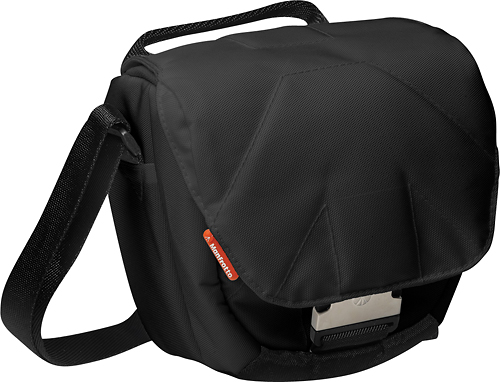
I also splurged picked up a few accessories. I bought a nice little camera bag (Manfrotto Stile Solo II) that fits the camera, extra lens, the charger and wires great. The bag doesn’t have enough room for the light shade, but I’m okay with that.
I grabbed two rocketfish UV lens caps at Best Buy. They are ~$10 each and from the reviews I’ve read they don’t do too much, but are a great way to protect the real lens. Finally, Fry’s was having a great sale on Class-10 32GB SDHC memory cards and picked one up.
With all that I’m now set to be a premier pro-am photographer, though I don’t know what I’m doing. I’ve been done a bit or reading on how to use the camera, but mostly I’ve been reading on what all the sensor readings mean and how to take good photos. I know have a ton of photos of our candlesticks, Lisa’s last day flowers, and much to Lisa’s disapproval, her on the couch doing shutterfly stuff.
Well lets hope I learn quickly as baby Chase is due in less than 2 weeks!
I just got a new phone. After working really hard on my Evo shift I just couldn’t take the slowness anymore. So I upgraded to a huge phone, the Samsung Note 2 on Sprint. I’m still not too sure this is the phone for me as I’m worried about the size of it. I almost bought the phone from Best Buy, but they were out of the titanium version and would have to mail it in. So I decided to get it through Costco. From Costco they had it as the same price, but covered the $36 upgrade fee and gave an additional car charger, case, and screen protector. The phone was also mailed and it took about a week for it to come in. Once I got the phone I charged the battery to full then went to work transferring phones over.
Samsung Note 2
Prepare for Transfer
In order to do an easy transfer from my old phone I did a Titanium backup of my apps. More specifically:
Select Menu -> Batch actions ->Backup all user apps + system data
This should backup all the SMS messages too, but just in case it didn’t work is used SMS Backup & Restore
Rooting
I have the root version and really want to keep root on my phone. Though at this time I have no desire to flash any ROMs or add a different recovery, but still want to get the OTA updates from Sprint/Samsung. So I followed the directions posted on the XDA forums. At the time of writing this post the VPALJC was the most current ROM. I’ve copied the steps I followed, pretty much exactly as listed on the forum, so that I can recall what I did in the past. I suggest reading the forum as it has a better chance of being kept up to date, whereas this post will be a simple moment in time.
Steps I followed to root and still maintain OTA updates.
Download the SPH-L900 (Samsung note 2) drivers from the Samsung’s site. Click on the Manuals & Downloads tab at the bottom and then on Software for the latest driver.
Then in the PDA field and select the firmware file, root66_SPR_L900VPALJ1.tar.md5
Leave Auto Reboot and F. Reset Time checked.
Click start and wait for it to download the files to the phone, below is the message log I saw
Enter CS for MD5..
Check MD5.. Do not unplug the cable..
Please wait..
root66_SPR_L900VPALJC.tar.md5 is valid.
Checking MD5 finished Sucessfully..
Leave CS..All threads completed. (succeed 0 / failed 0)
Added!!
ID:0/003> Odin v.3 engine (ID:3)..
File analysis..
SetupConnection..
Initialzation..
Get PIT for mapping..
Firmware update start..
boot.img
NAND Write Start!!
cache.img
hidden.img
modem.bin
param.bin
recovery.img
sboot.bin
system.img
tombstones.img
tz.img
RQT_CLOSE !!
RES OK !!
Removed!!
Remain Port ....  0
All threads completed. (succeed 1 / failed 0)
When done let phone reboot and the phone is rooted
I haven’t used or tested this yet to retain root privileges through an OTA update
,Get OTA Rootkeeper from the Google Play store on your phone
Open OTA Rootkeeper and click “Protect Root”
Then after you receive a notification for an OTA update you should go into OTA Rootkeeper and click something to re-enable root.
Since I haven’t had to use this yet I don’t know what I will have to click nor do I know that this will work as the notes in the app say “Useless with: Samsung phones updated with KIES or Odin and older devices using YAFFS filesystems only, and device flashing entiere system partition”
I suppose I’ll cross this road when I get to it.
Well after things rooted successful the phone restarted and everything worked just fine and root was enabled.
Transferring Apps & Data
Well with things rooted I just needed to get the apps back through Titanium backup.
Make sure the backup folder points to the folder that all the backups were stored in as the phone may not default to the same folder. Go to Menu -> Preferences -> Backup Folder Location
Next restore the apps with Menu -> Batch Actions -> Restore missing apps + all system data
Becareful to only select the system data that will work with the new phone (SMS, call logs, contacts, etc) especially when switching brands. I don’t know what will happen, but I’m sure it isn’t good
Next ensure all the apps are link to the Play Store with Menu -> Market Doctor
And once that is done things should be back where they are with the exception that I see that the defaults and some passwords didn’t transfer. I may unselected some system data that I wasn’t supposed to, but selecting the default apps in some cases isn’t so bad.
Closing Thoughts
Well with all that done, I’m nearly back up and running on my new phone. I’m switching back to Launcher Pro, but I really like a the Touchwiz calendar widget. I’ll be searching around the net to see if I can find a way to port it over or if there is an equivalent app. I was using calendar pad, but I really like the Touchwiz widget.

 Home
Home MyGIG Software Update